


Conversations blocked by ManyChat: connect with Facebook
If you use ManyChat (or another messaging app) on the same Instagram account, it can keep some conversations and the ZeroChats AI stops answering in them. The fix is to connect Instagram to ZeroChats with Facebook login and give it control of the conversations from your Facebook Page.
The problem and how to spot it
Section titled “The problem and how to spot it”Meta only lets one app control each Instagram conversation. If ManyChat controls a conversation, the ZeroChats AI can’t answer in it. With the Instagram login, ZeroChats can’t take that control back; with the Facebook login it can: your Facebook Page can choose ZeroChats as the app that controls the conversations.
You’ll spot it because:
- The Dashboard shows the notice “Another tool connected to your Instagram is blocking conversations”.
- In Chats, the AI’s messages in those conversations show as “Not delivered”.
- The AI doesn’t answer some leads, usually the ones who came in through a ManyChat automation.
If you don’t use any other messaging app on your Instagram, you don’t need to do anything: Log in with Instagram is still the recommended option.
| Option | What it includes | When to use it |
|---|---|---|
| Log in with Instagram (recommended) | Direct messages, stories and comments. | In most cases. |
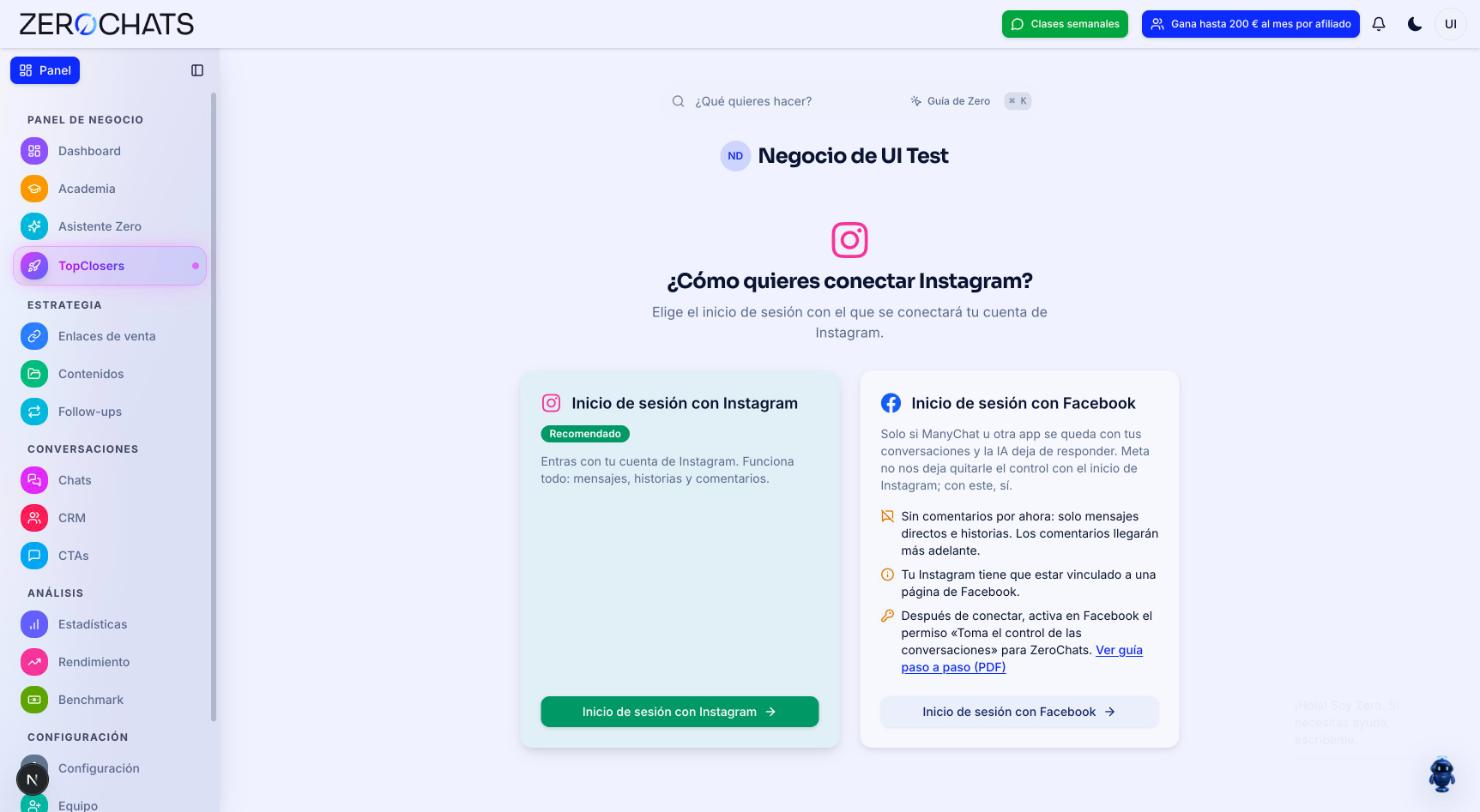
| Log in with Facebook | Direct messages and stories. Comments: coming later. | If ManyChat or another app keeps your conversations and the ZeroChats AI stops answering. |
Requirements
Section titled “Requirements”- A professional Instagram account (business or creator).
- That account linked to a Facebook Page.
- Being an admin of that Page, with full control.
- A computer with a browser (easier than on a phone).
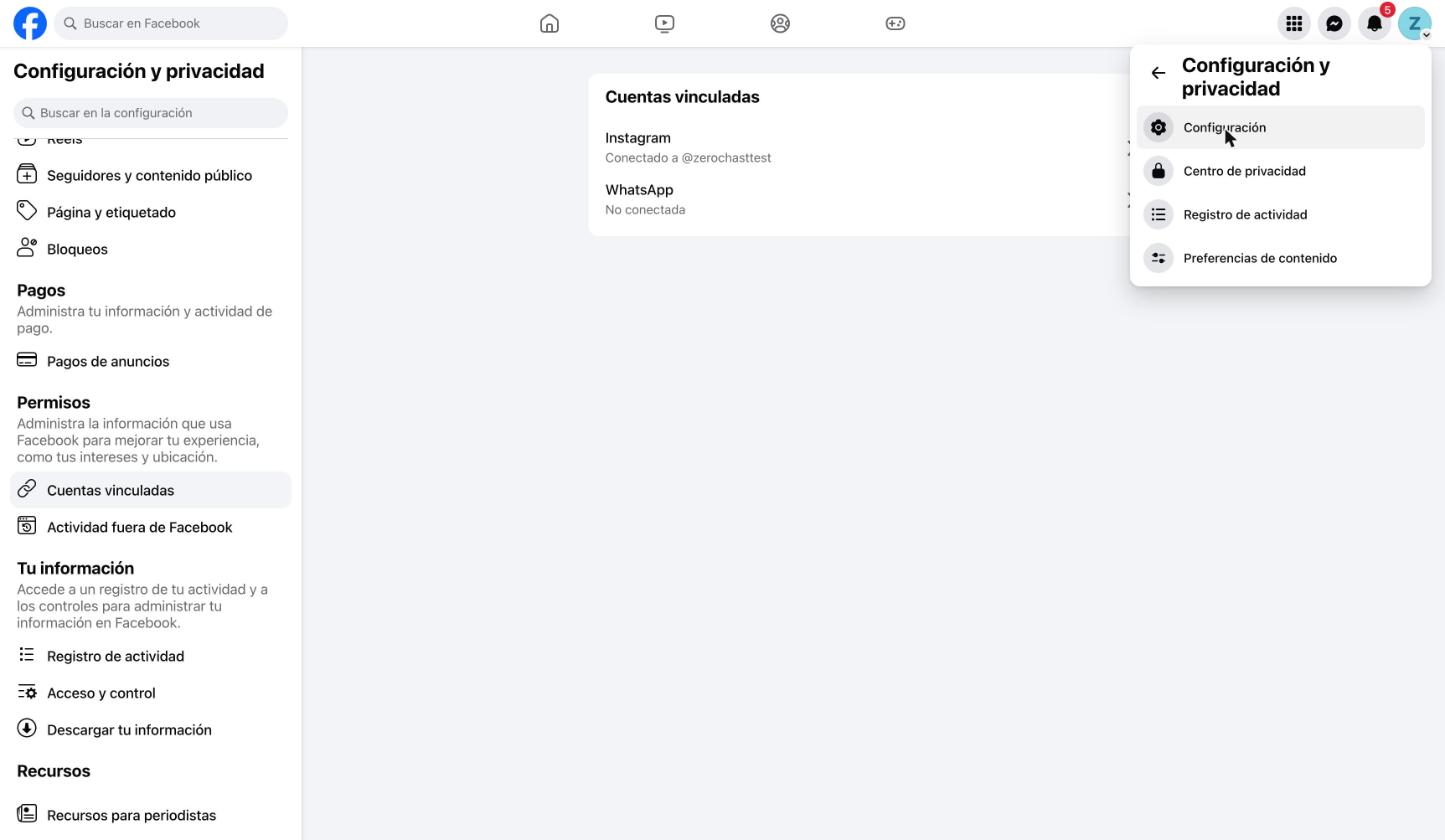
To check the link: use Facebook as the Page and go to Settings & privacy → Settings → Linked accounts. Under Instagram it must say “Connected to @youraccount”.
The screenshots below are in Spanish; the menus are in the same place in English.
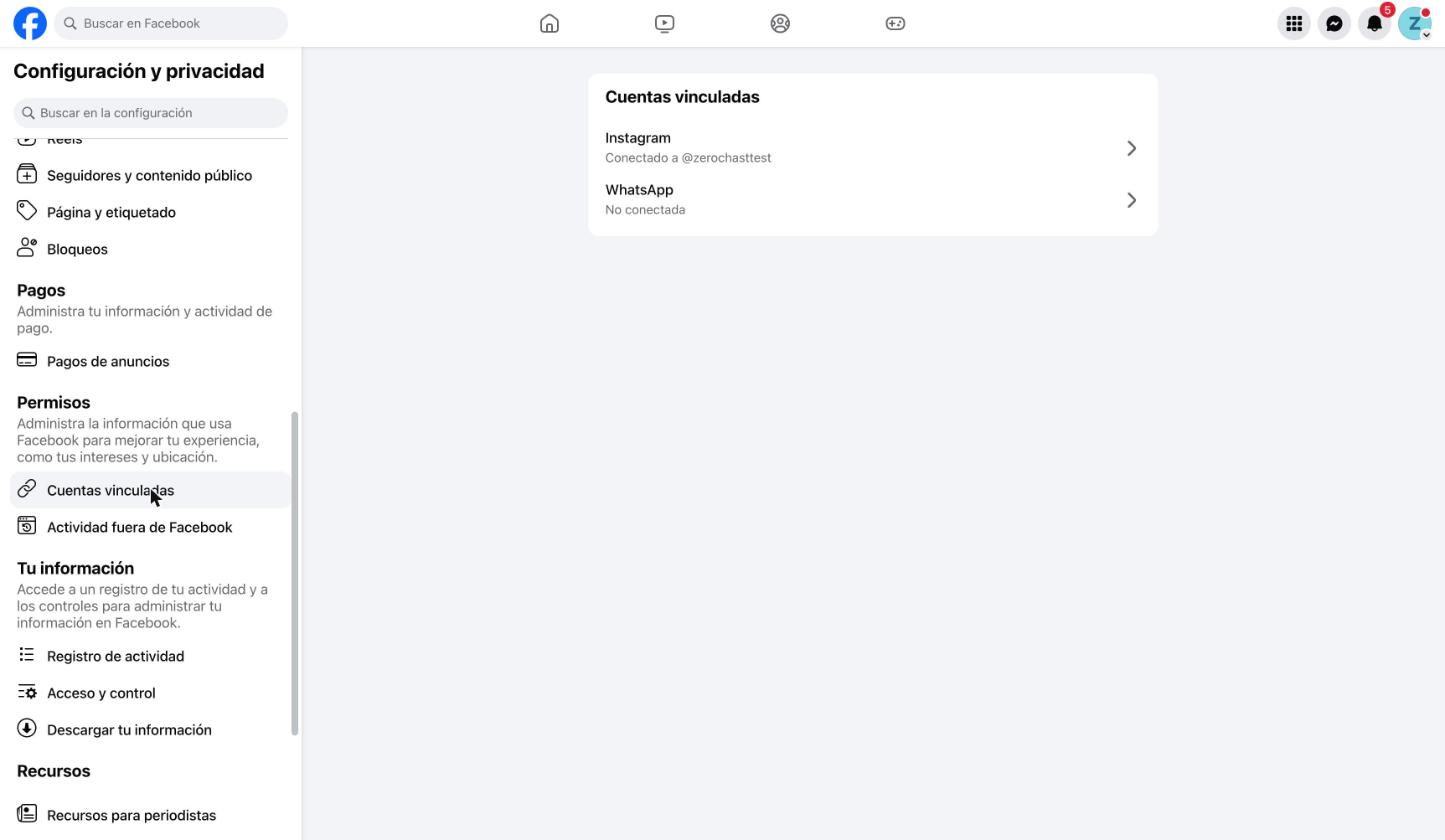
The fix: connect Instagram with Facebook
Section titled “The fix: connect Instagram with Facebook”-
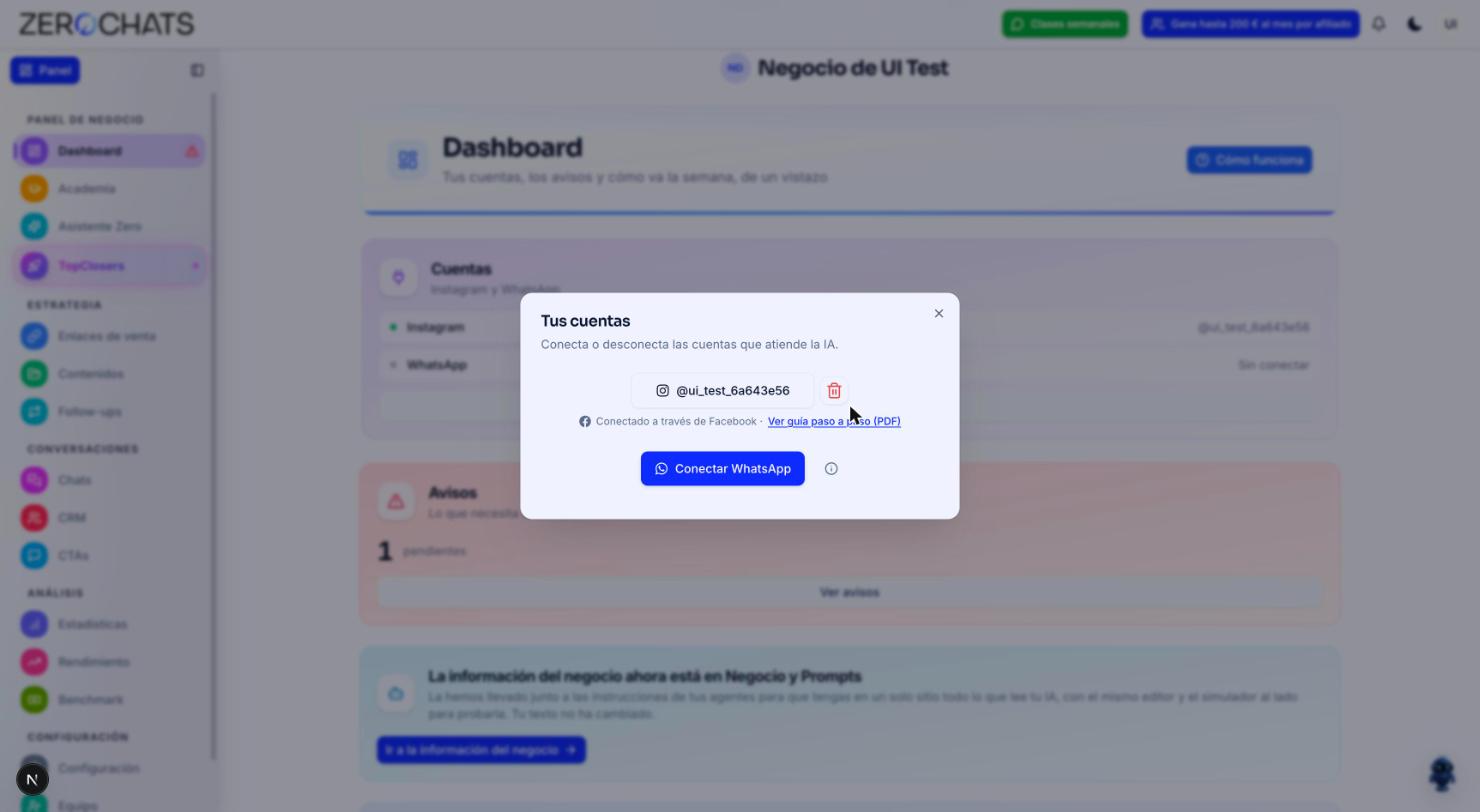
Disconnect your Instagram. In ZeroChats, go to Dashboard → Manage accounts and click the trash icon next to your Instagram account.
-
Reconnect choosing Facebook. Click Link with Instagram and, under “How do you want to connect Instagram?”, choose Log in with Facebook.
-
Choose your Page. Log in with your Facebook account and choose the Page linked to your Instagram. In Manage accounts you’ll see “Connected through Facebook”.
Give ZeroChats control in Facebook
Section titled “Give ZeroChats control in Facebook”Connecting with Facebook isn’t enough: afterwards you have to grant permission in Facebook so ZeroChats can take control. You only do this once.
Part A: choose ZeroChats as the Instagram app
Section titled “Part A: choose ZeroChats as the Instagram app”-
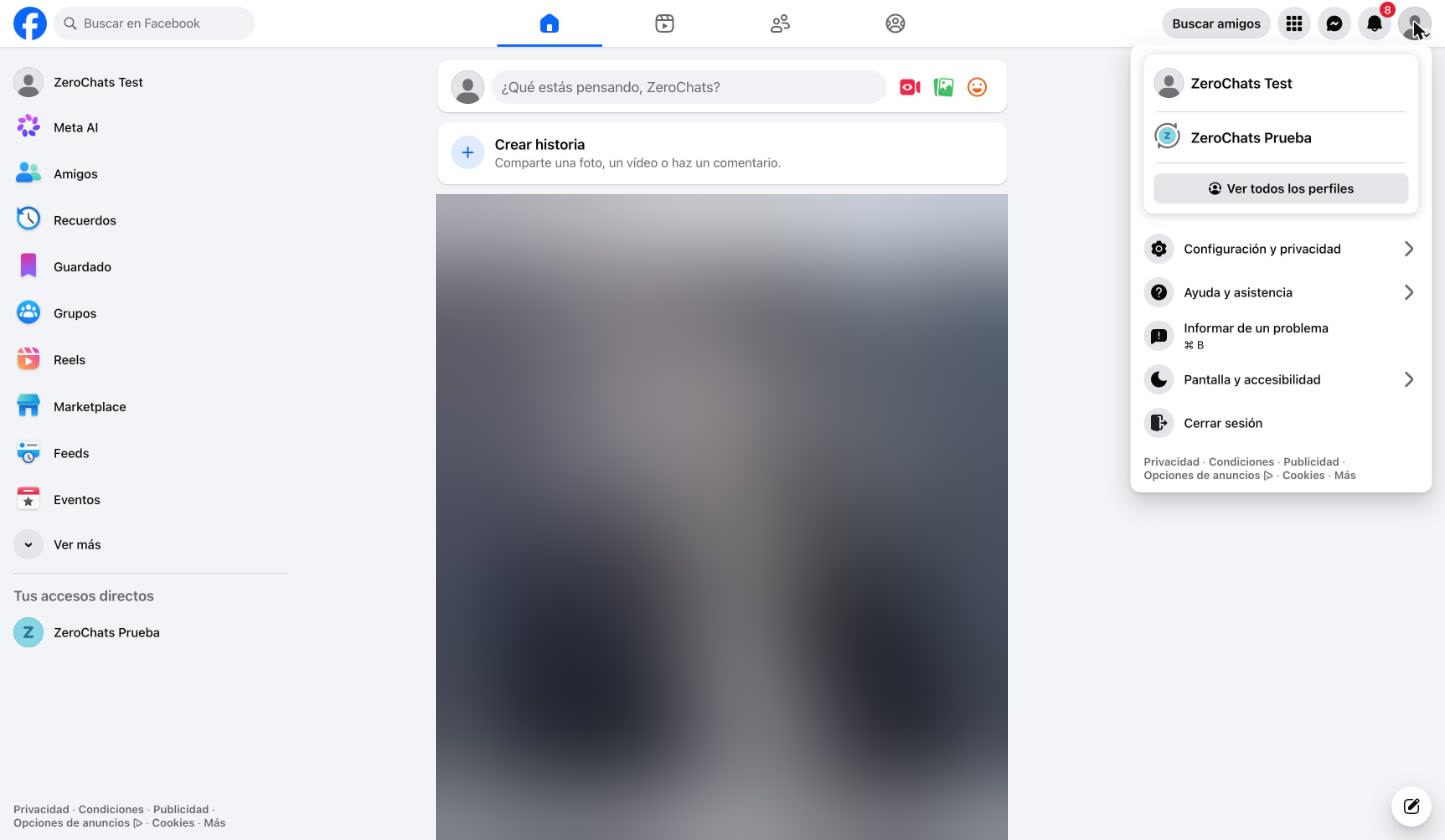
Switch to your Page. On facebook.com, click your profile picture (top right) and choose your Page.
-
Open settings. Click the profile picture again → Settings & privacy → Settings.
-
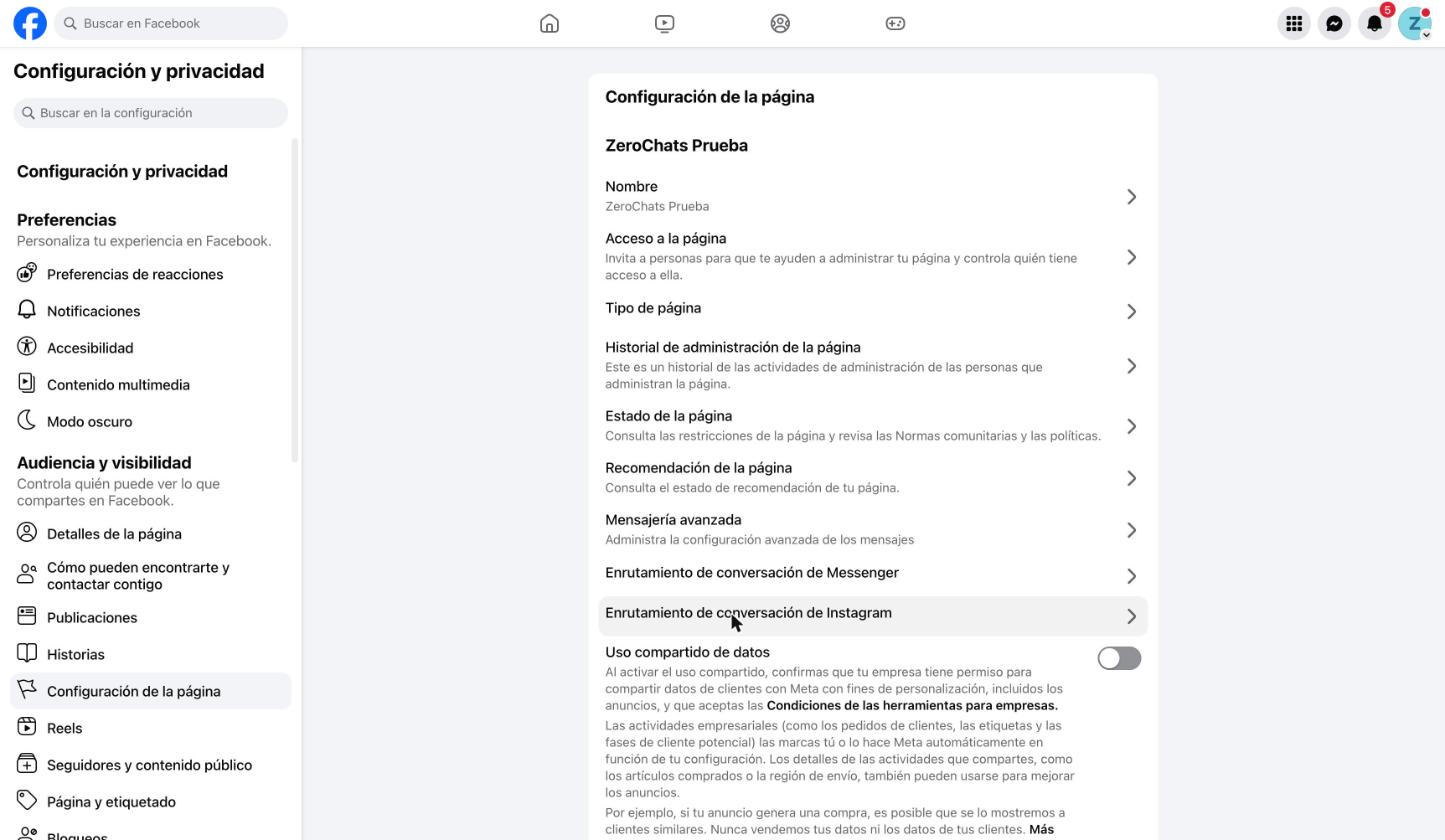
Open Instagram routing. In the left menu click Page setup, then Instagram conversation routing (not the Messenger one).
-
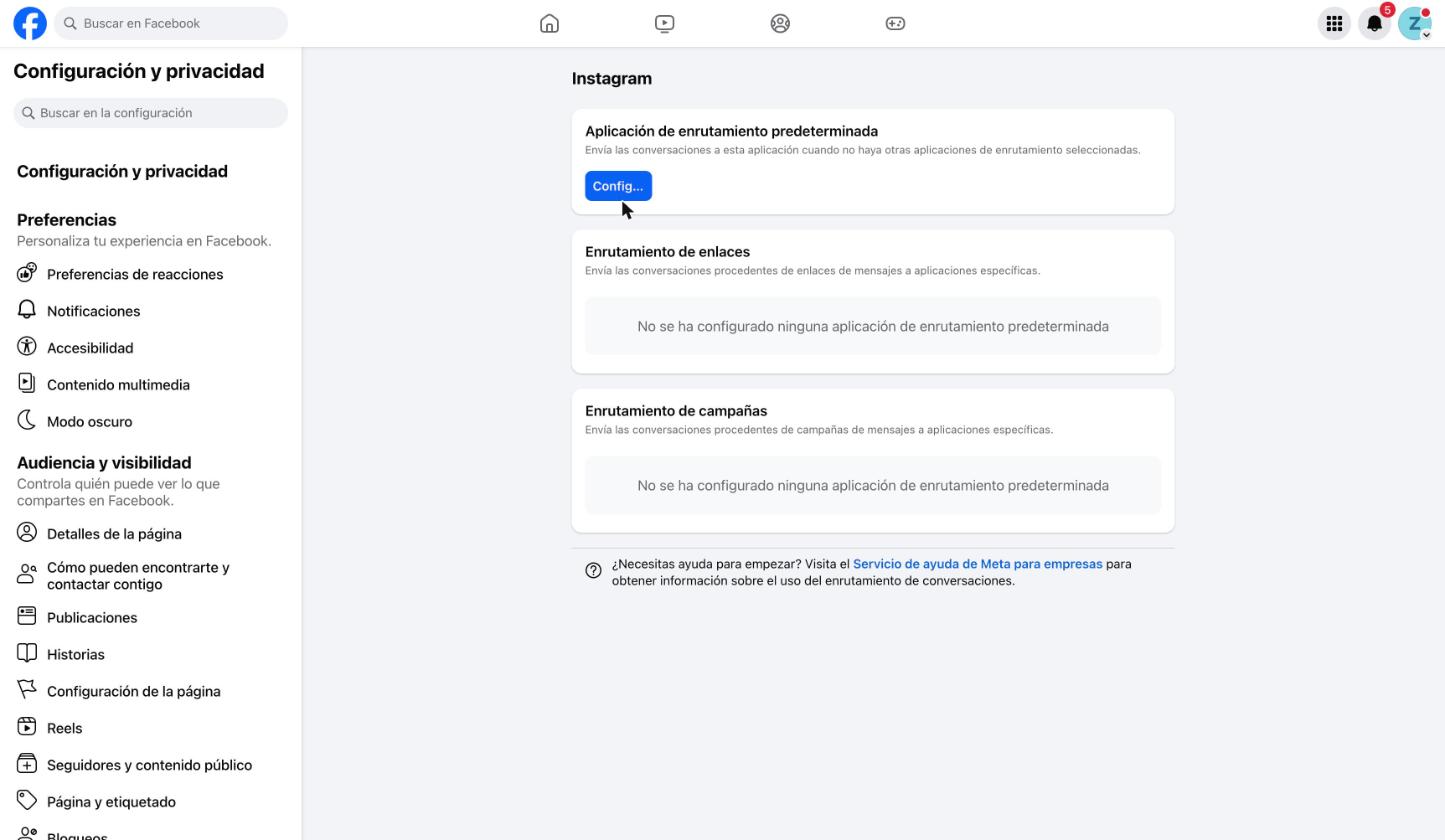
Set the default app. Under Default routing app, click Set up. If an app is already chosen (for example Manychat), click the three dots (···) next to it and choose Edit.
-
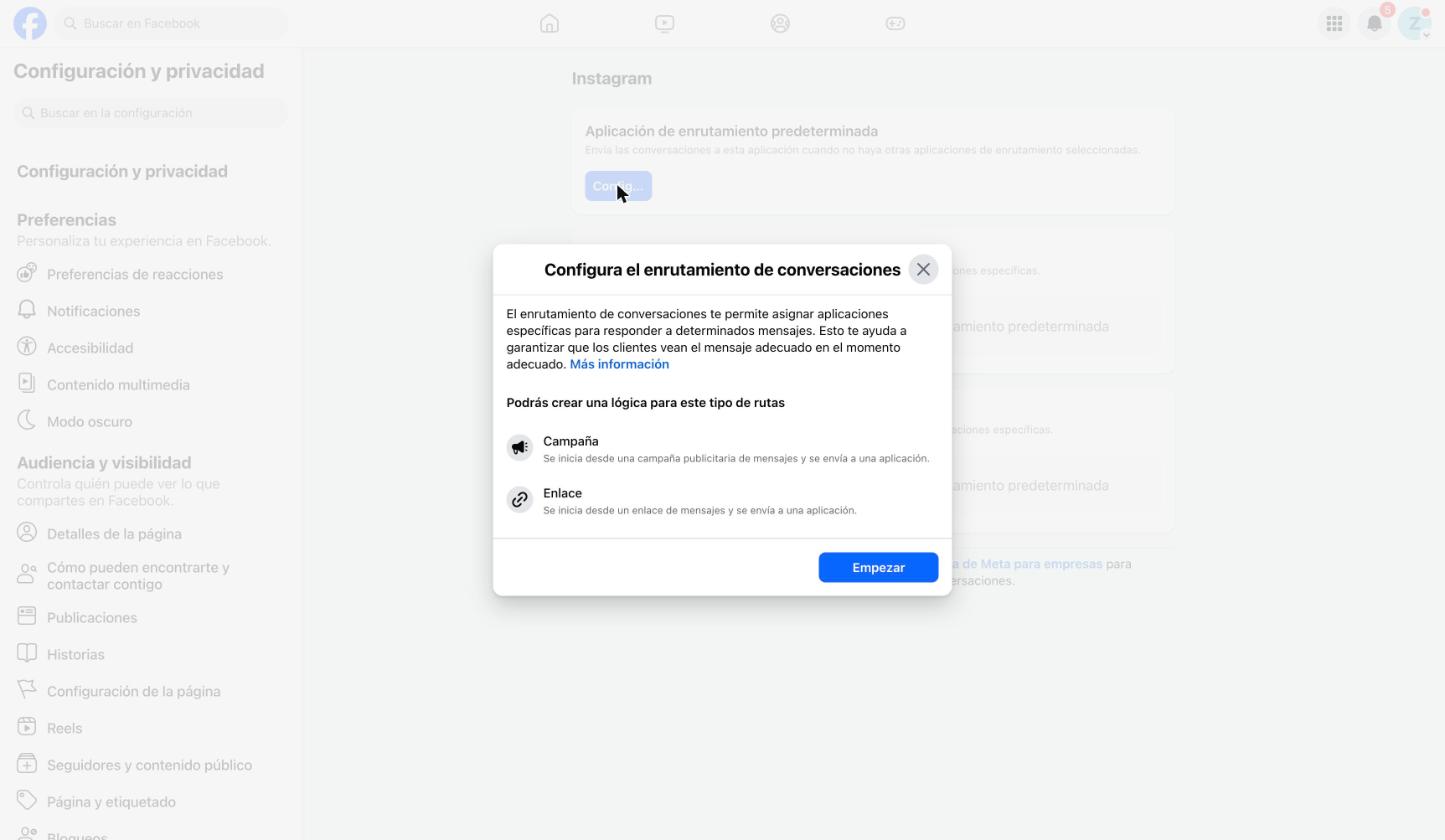
Choose ZeroChats and save. Click Get started, pick ZeroChats in the App dropdown and click Save.
Part B: turn on the Instagram permissions
Section titled “Part B: turn on the Instagram permissions”-
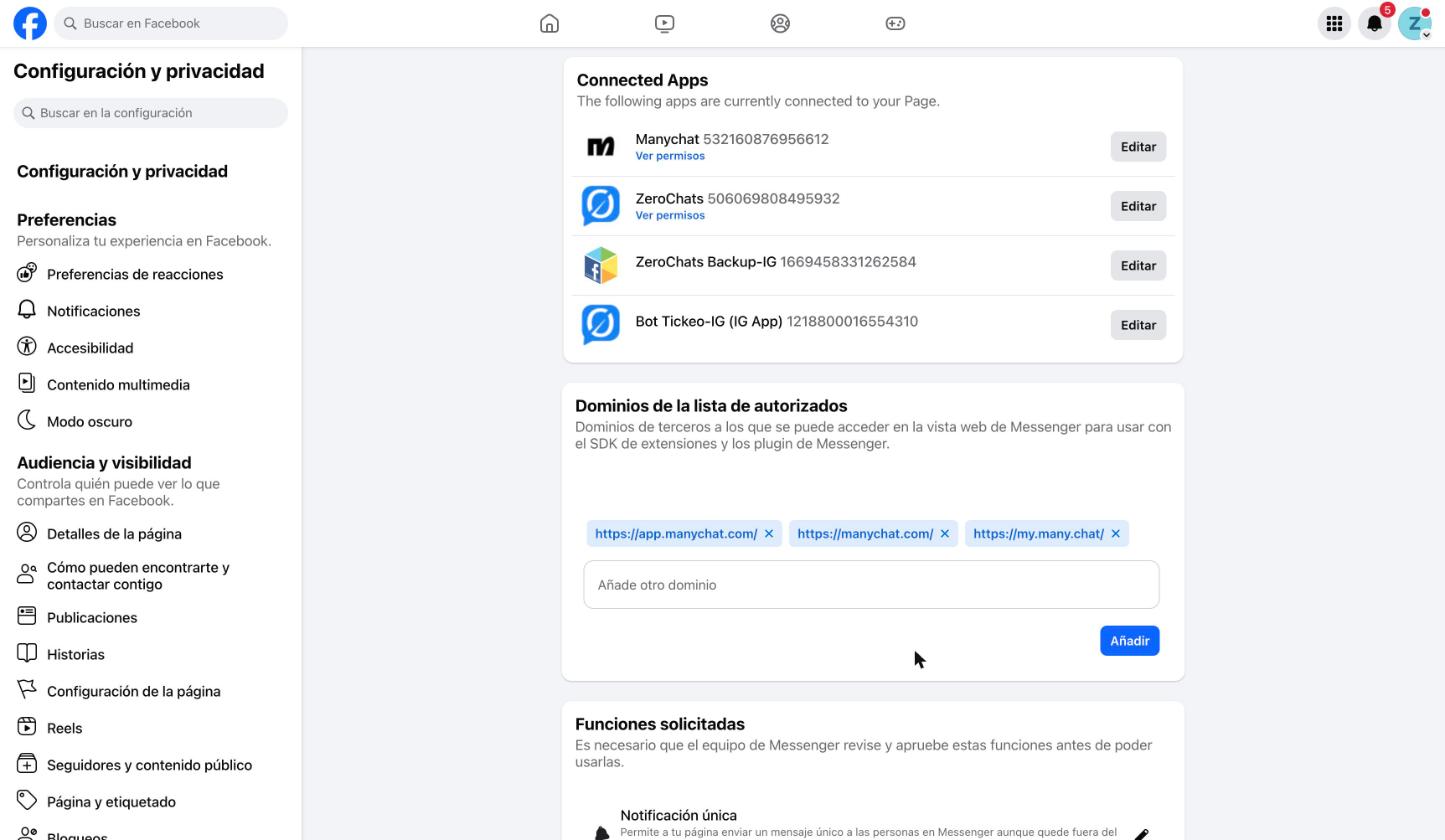
Open Advanced messaging. Go back to Page setup and click Advanced messaging. You’ll see the apps connected to your Page, for example Manychat and ZeroChats.
-
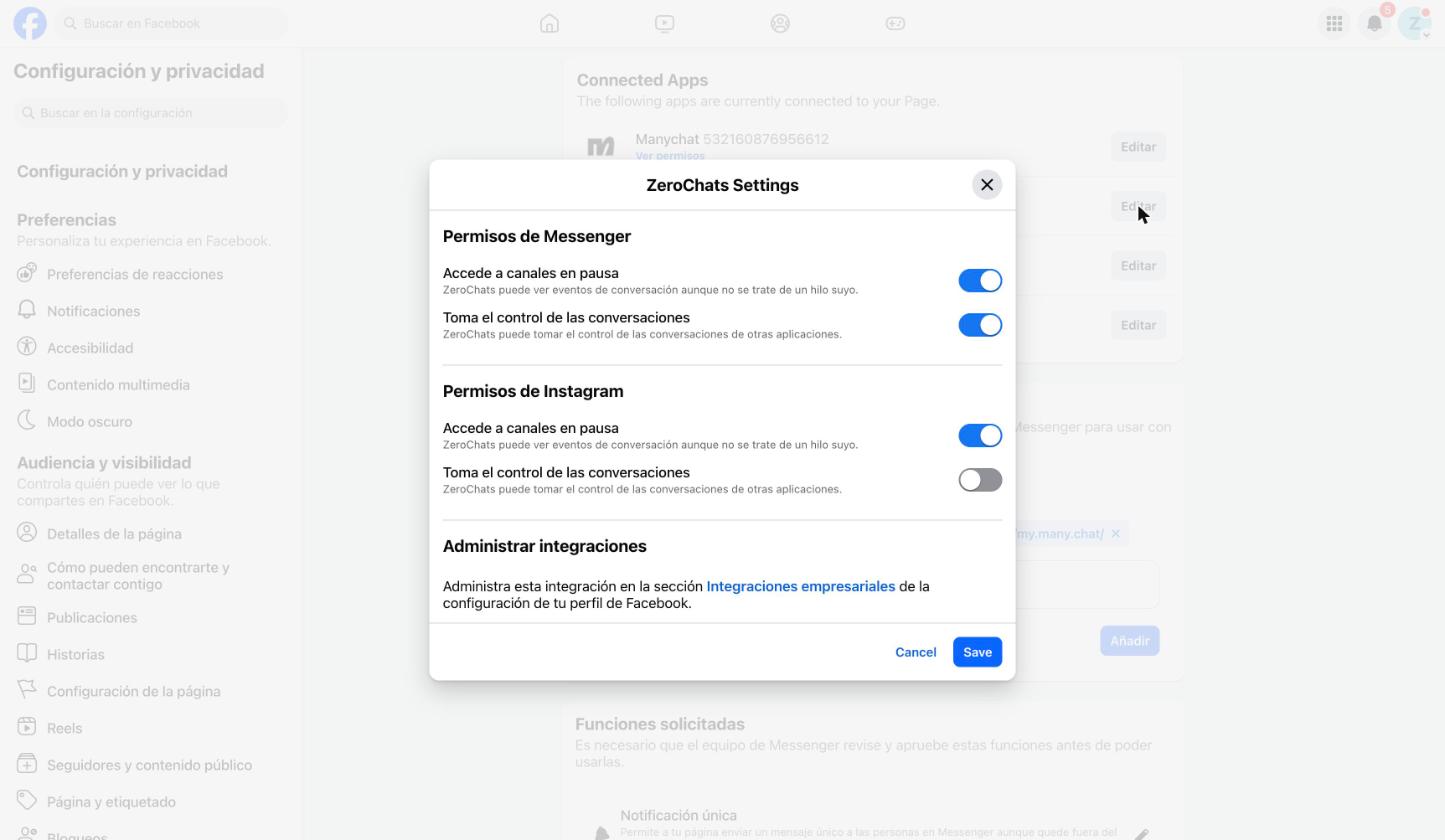
Give control to ZeroChats. Click Edit next to ZeroChats. Under Instagram permissions, turn on Access paused channels and Take control of conversations. Click Save.
-
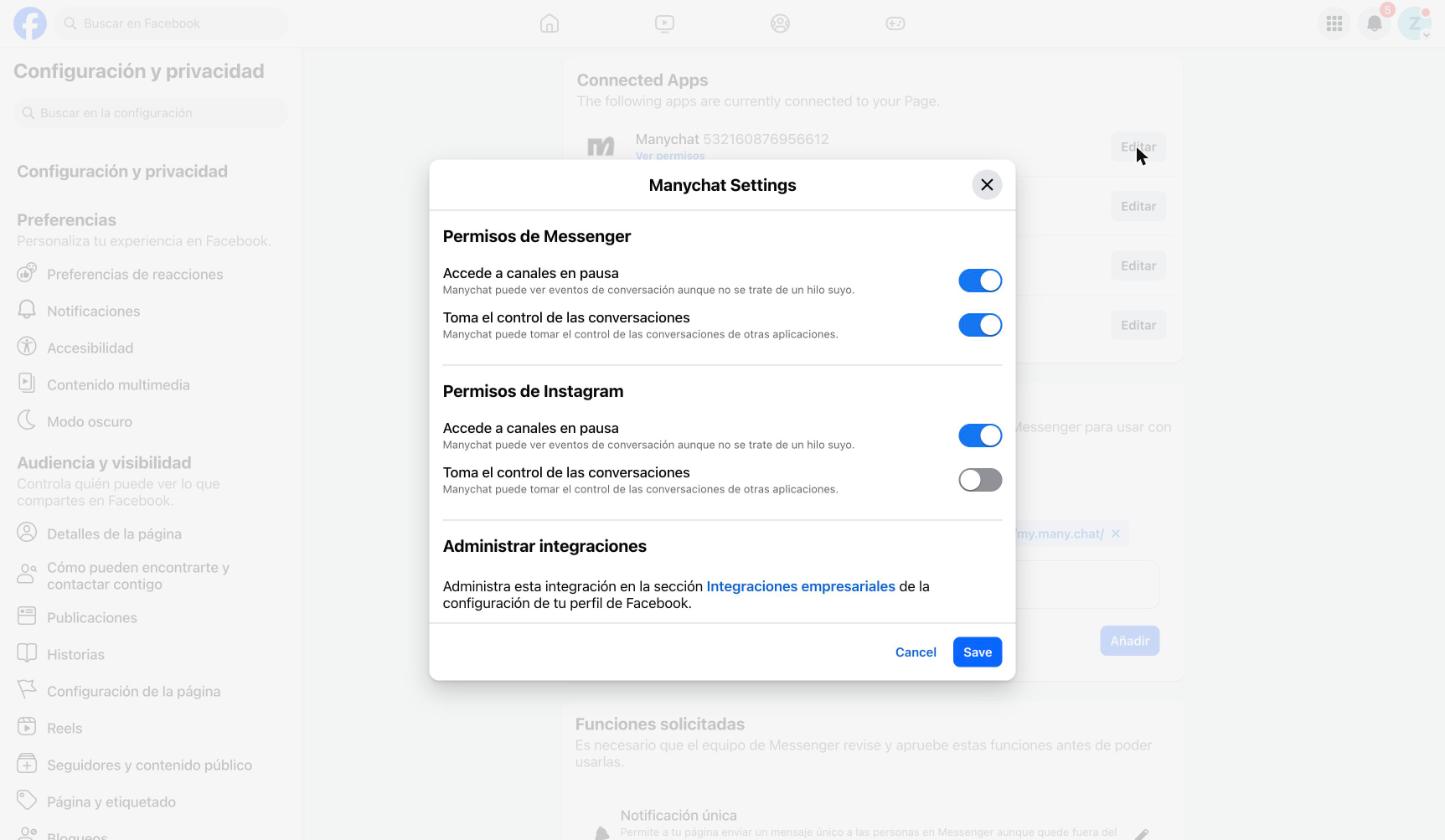
Take control away from ManyChat. Click Edit next to Manychat. Under Instagram permissions, leave Take control of conversations off and click Save. This way ManyChat can’t take the conversation away from ZeroChats.
Check that it works
Section titled “Check that it works”- Manage accounts says “Connected through Facebook”.
- In Instagram conversation routing, the default app is ZeroChats.
- In Advanced messaging → Instagram permissions, ZeroChats has both switches on and Manychat has Take control of conversations off.
- From another Instagram account, send a direct message to your account. Within a few minutes the AI replies and the conversation shows up in Chats. Also try with a lead who wasn’t getting replies before.
If something doesn’t add up
Section titled “If something doesn’t add up”- I can’t see “Instagram conversation routing” or “Instagram permissions”. Your Instagram isn’t linked to the Page, or you aren’t using Facebook as the Page.
- ZeroChats doesn’t show up in the app list. Connect ZeroChats with the Facebook login using that Page, then come back to these steps.
- It won’t let me edit. You need to be a Page admin with full control.
- The AI still doesn’t reply in old conversations. The changes mostly apply to new conversations. If a specific one is still blocked, contact support with the lead’s Instagram username.
- My ManyChat flows no longer send direct messages. That’s expected: ZeroChats now controls the conversations.
Meta often renames its menus. If you can’t find an option, search for “routing” in Facebook’s settings search box.
Download the PDF guide
Section titled “Download the PDF guide”The same guide, with every screenshot, to keep at hand or pass on to whoever manages your Facebook Page. The PDF is in Spanish: